

Adding an expense from a receipt photo
Take a photo and the expense fills itself in. · 3 steps
-
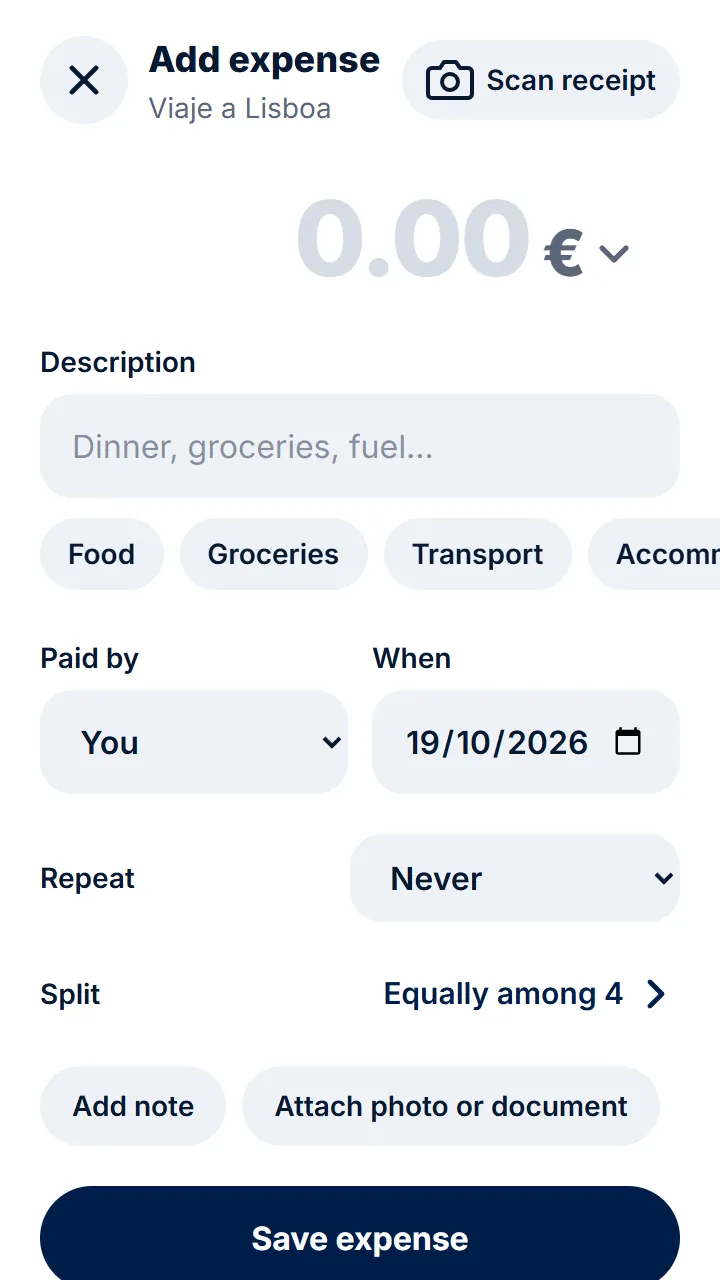
Step 1 of 3
When adding the expense, tap «Scan receipt».
-
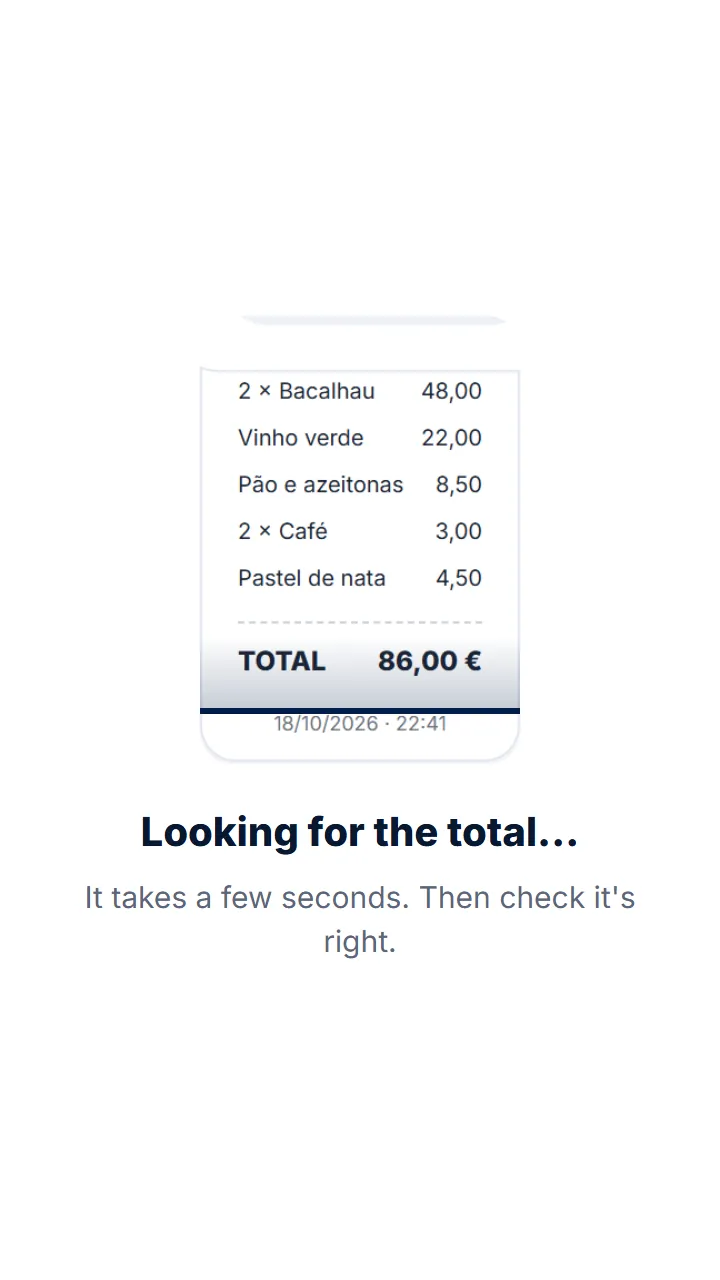
Step 2 of 3
Take the photo or pick it from your gallery. It's read in a few seconds.
-
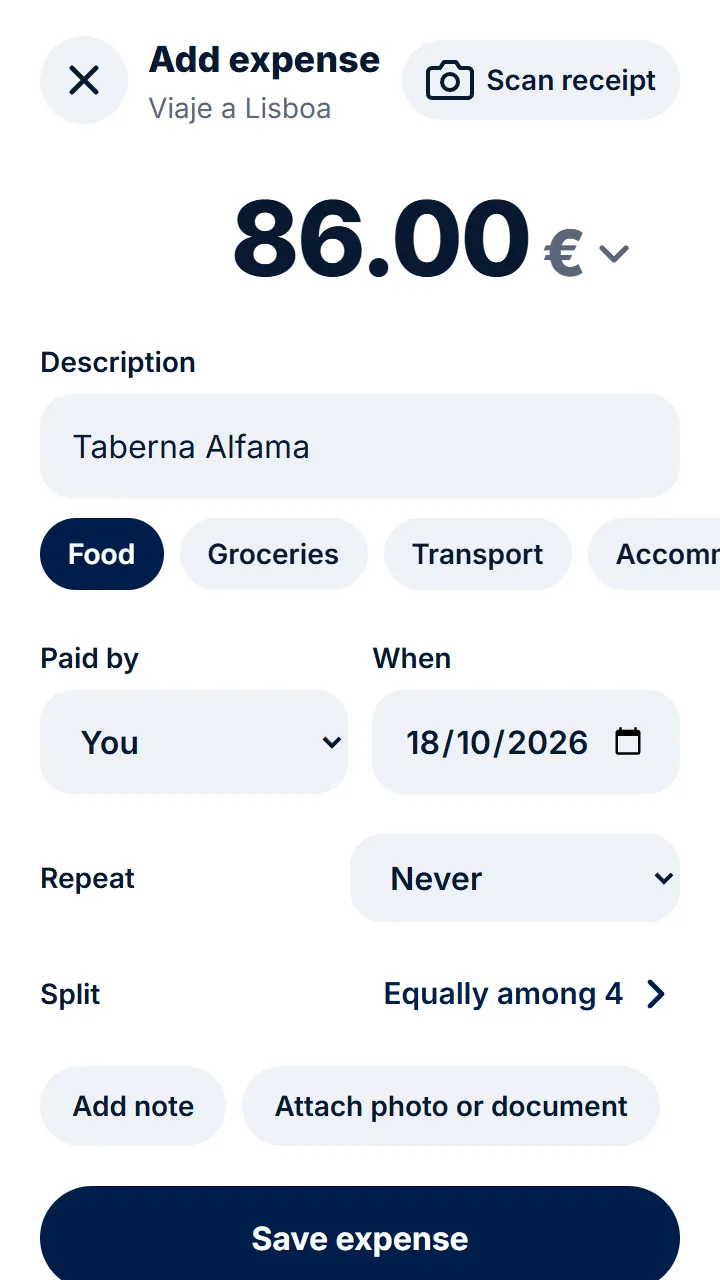
Step 3 of 3
Check the amount, the date and the description and tap «Save expense». The photo stays saved with the expense.
Other guides
- Adding an expense How much, what for and who paid. That's all.
- Splitting an expense another way When not everyone takes part or pays the same.
- Expenses in another currency When travelling, add expenses in the currency you paid in.
- Recurring expenses Rent, bills or a subscription, without adding them every time.
Still have questions? Frequently asked questions · Write to us